Optimizing font loading for better performance
A practical approach to loading web fonts without slowing down initial page render.
At a glance, adding web fonts seems simple: pick a font, copy the provided snippet, drop it into your project, and confirm it works. This is especially common with Google Fonts, where developers routinely paste a <link> into the <head>.
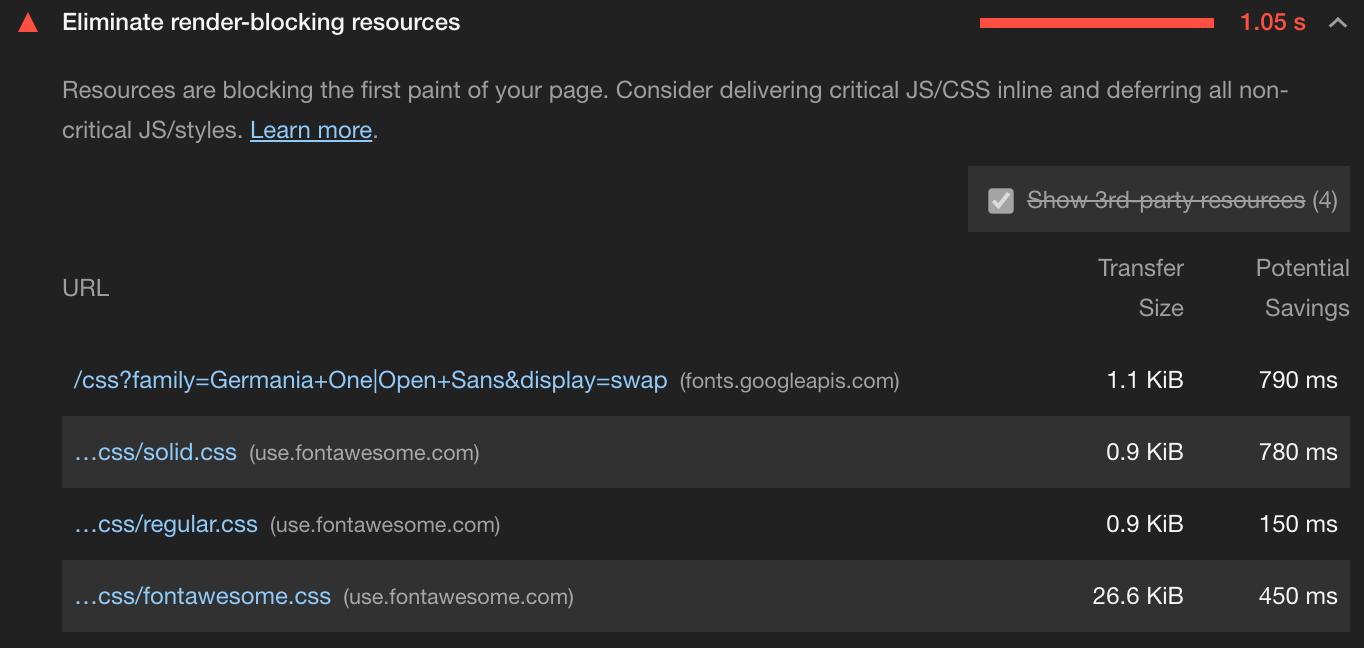
But performance tools like Lighthouse often flag this exact setup.
The issue with default font loading
When font stylesheets are placed in the <head>, Lighthouse identifies them as render-blocking resources, sometimes delaying page rendering by about a second. This can be confusing since the setup follows standard documentation and best practices.
So what's the problem?
The goal is to:
- Remove font stylesheets from blocking rendering
- Improve performance scores
- Avoid the "flash of unstyled text" (FOUT)
All of this can be achieved using plain HTML, CSS, and JavaScript, making it applicable across frameworks.
What "render-blocking" actually means
When a browser loads a page, it builds a render tree using:
- The DOM (HTML structure)
- The CSSOM (CSS rules)
This process is part of the critical render path, which determines how quickly content appears on screen.
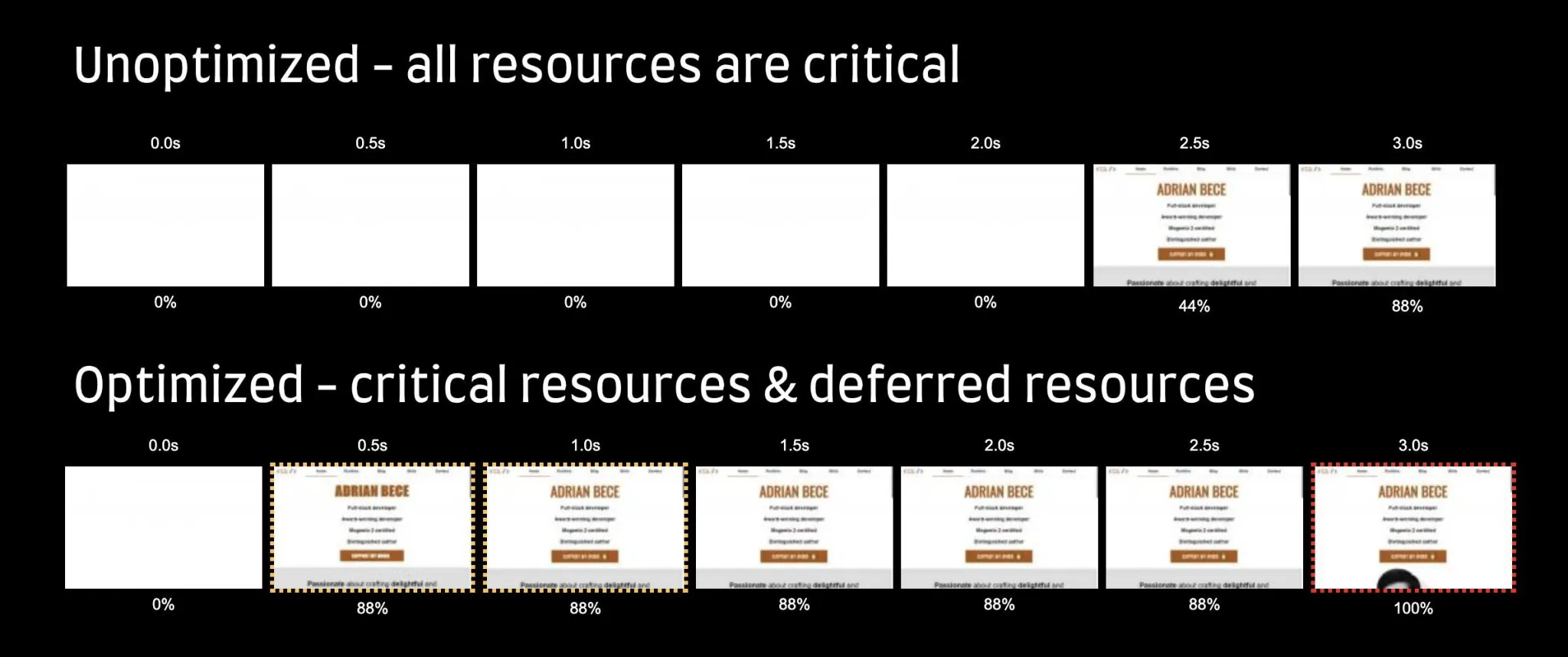
Before rendering, the browser must:
- Load and parse HTML
- Load and parse all linked CSS
Even small font stylesheets can slow things down because:
- The stylesheet must load first
- Then the font files referenced inside must also be fetched
@font-face {
  font-family: "Merriweather";
  src:
    local("Merriweather"),
    url(https://fonts.gstatic.com/...) format("woff2");
}
Although lightweight, these files still:
- Become part of the critical render path
- Delay visible content
Why this matters for users
Users care about content first. If a page stays blank while waiting for fonts, especially on slow connections, they may leave.
A better approach is to:
- Prioritize essential resources (HTML and critical CSS)
- Load fonts later
This ensures content appears quickly, even if styling isn't fully applied yet.
A more efficient font loading strategy
A widely accepted method includes four steps:
- Preconnect to the font source
- Preload the font stylesheet
- Load fonts asynchronously after rendering
- Provide a fallback for users without JavaScript
<link rel="preconnect" href="https://fonts.gstatic.com" crossorigin />

<link
  rel="preload"
  as="style"
  href="https://fonts.googleapis.com/css2?family=Merriweather&display=swap"
/>

<link
  rel="stylesheet"
  href="https://fonts.googleapis.com/css2?family=Merriweather&display=swap"
  media="print"
  onload="this.media='all'"
/>

<noscript>
  <link
    rel="stylesheet"
    href="https://fonts.googleapis.com/css2?family=Merriweather&display=swap"
  />
</noscript>
Why this works
preconnectspeeds up network setuppreloadfetches the stylesheet earlymedia="print"lowers priority so it doesn't block renderingonloadswitches it back to normal once ready
This removes fonts from the critical rendering path and improves Lighthouse results.
The tradeoff: FOUT
Loading fonts later introduces Flash of Unstyled Text (FOUT), where fallback fonts appear briefly before switching to the web font.

This can also cause layout shifts.
Reducing FOUT
To make the transition less noticeable:
- Pick a fallback font similar to your web font
- Match styling (size, spacing, line height)
- Smoothly switch styles once the font loads
Tools like Font style matcher can help align fallback and web fonts.
Detecting font load completion
The CSS Font Loading API allows detection of when a font is ready.
document.fonts.check("12px 'Merriweather'")This returns true if the font is loaded.
Requirements
- At least one element must use the font
- The font name must match exactly
Example
html
<body class="no-js">
  <!-- Content -->

  <div
    aria-visibility="hidden"
    class="hidden"
    style="font-family: '[web-font-name]'"
  >
    <!-- non-breaking space -->
  </div>

  <script>
    document.body.classList.remove("no-js")
  </script>
</body>
css
body:not(.wf-merriweather--loaded):not(.no-js) {
  font-family: [fallback-font];
}

.wf-merriweather--loaded,
.no-js {
  font-family: "[web-font-name]";
}

.hidden {
  position: absolute;
  overflow: hidden;
  clip: rect(0 0 0 0);
  height: 1px;
  width: 1px;
}
javascript
var interval = null

function fontLoadListener() {
  var hasLoaded = false

  try {
    hasLoaded = document.fonts.check('12px "[web-font-name]"')
  } catch (error) {
    console.info("Font API error", error)
    fontLoadedSuccess()
    return
  }

  if (hasLoaded) {
    fontLoadedSuccess()
  }
}

function fontLoadedSuccess() {
  if (interval) {
    clearInterval(interval)
  }
  // Apply class for loaded font
}

interval = setInterval(fontLoadListener, 500)
Next.js approach (Simpler and built-in)
Unlike manual setups, Next.js already handles most font optimization for you using next/font.
Example using Google Fonts
import { Merriweather } from "next/font/google"

const merriweather = Merriweather({
  subsets: ["latin"],
  display: "swap",
})

export default function App({ Component, pageProps }) {
  return (
    <main className={merriweather.className}>
      <Component {...pageProps} />
    </main>
  )
}
Why this is better
Next.js automatically:
- Self-hosts font files (no external CDN dependency)
- Eliminates render-blocking requests
- Applies
font-display: swapto reduce invisible text - Preloads fonts efficiently
- Avoids layout shifts by optimizing fallback behavior
In other words, it handles:
- Preloading
- Performance optimization
- FOUT mitigation
…without needing custom scripts or complex setups.
Conclusion
Content should always load first. Fonts are non-essential and can be deferred without affecting usability.
Key ideas:
- Avoid render-blocking font loading
- Load fonts asynchronously
- Use fallback fonts effectively
- Smooth transitions to reduce FOUT
If you're using a framework like Next.js, much of this complexity is handled for you automatically. Otherwise, a manual setup with preload, async loading, and font detection gives you full control over performance and user experience.